
Get productive with 7-Zip on Windows: Explorer-led compression, careful extraction, and File Manager efficiency
Hands-on guideThe sequences below assume a typical install on a standard Windows desktop profile. Wording on menus shifts with language packs, yet the underlying verbs—Add, Extract, Test—stay identifiable across locales.
Build an archive from File Explorer
- Select a single item, a multi-selection, or a folder hierarchy you want to freeze into one archive unit.
- Right-click, expand 7-Zip, then click Add to archive… to open the full configuration window.
- Choose 7z, zip, or another writer as policy dictates; enable AES encryption where required, and tune compression toward speed or minimum size depending on tonight’s ship date.
- Press OK; unless you redirected the destination, the resulting archive usually appears next to the sources.
Unwrap files from a download or attachment
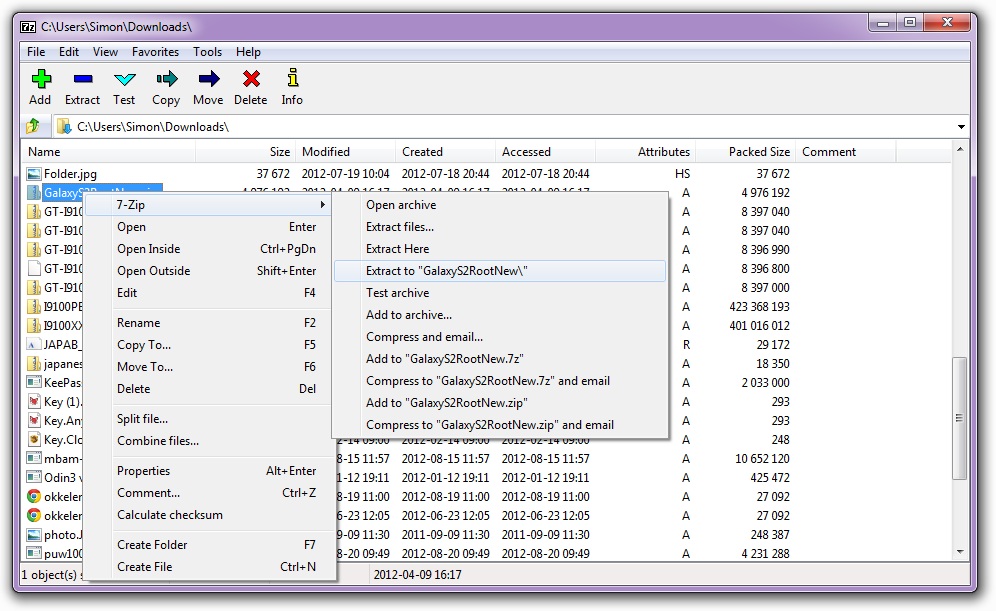
- Open the archive wherever it landed—Downloads, Outlook cache, a Teams channel folder, or removable storage—and right-click it.
- Select 7-Zip → Extract to “FolderName\” when you want an isolated folder, or Extract here when the current directory is already the right staging ground.
- Enter passwords exactly as issued; decryption must succeed before extraction proceeds, helping you avoid corrupted or partial files on disk.
Work inside the standalone File Manager
Open 7-Zip File Manager from Start when Explorer feels crowded for stacked archives or surgical restores. You retain an address bar, toolbar verbs, and list modes that let you descend into archives like directories, compare sizes quickly, drag selections outward, and fire commands without repeatedly diving through context menus.
Habits experienced users adopt
- Run sizable extractions on quick SSD volumes with generous free space—temporary data during unpack can temporarily exceed the final unpacked size.
- When collaborators run macOS or Linux, keep ZIP in the mix for maximum interoperability even if internal backups favor 7z for density.
- Hold onto originals until another device—or an offline restore—has reopened the archive and validated business-critical contents.